
AI Video Creator - Bloom AI
BIVEXBeauty
3.846.00 Reviews
- Version
- 3.1.1
- Installs
- 100.00K
- Age Rating
- Everyone
Screenshots

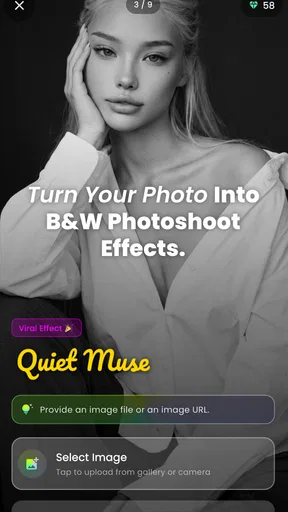
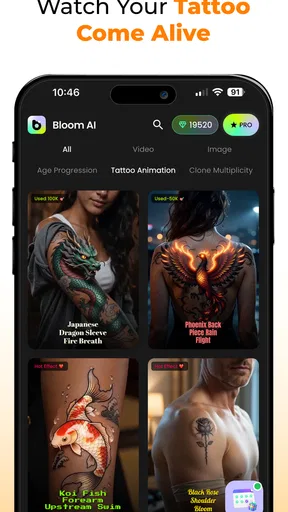
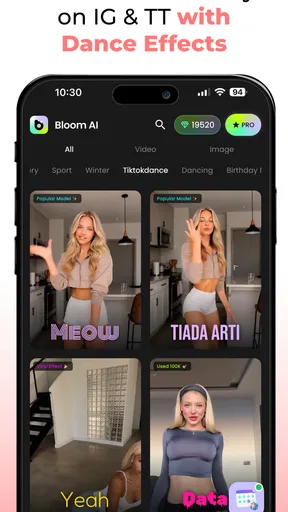
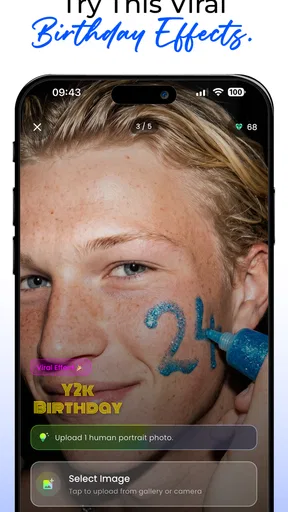
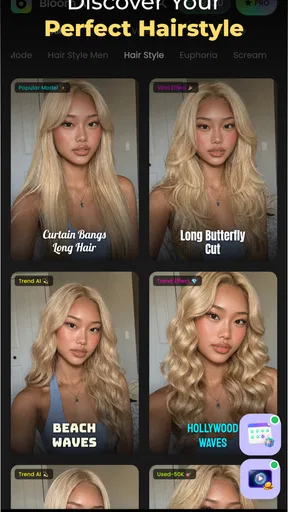
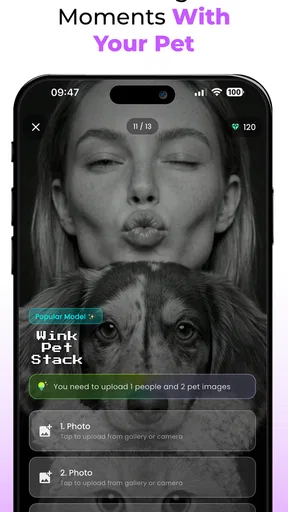
Our Review of AI Video Creator - Bloom AI
 Analysis by Appyee
Choosing an AI video app is less about finding the one with the most effects and more about finding a workflow you will actually use. I’d look first at what you want to make: a quick social post, a polished edit from footage you already have, or a video built around an idea you can describe in words. Those are different jobs, and a tool that makes one easy may feel limiting for another.
AI Video Creator - Bloom AI is a beauty-category app from BIVEX that puts AI effects and video creation at the center of its pitch. It is free to install, rated for Everyone, and has a 4.3 average from around 1.3K ratings, with over 10K installs. That gives a new user a useful starting point, but popularity alone does not tell you whether its style or workflow suits your projects.
Choose by the video you need to finish
Before opening any editor, I find it helpful to decide what “done” means. If I have a short clip and want to make it more eye-catching, AI effects may be the main attraction. If I need precise timing, carefully arranged shots, or exact control over every cut, a traditional timeline editor is usually the better place to start. If I have only a rough idea, a prompt- or script-led workflow can be appealing, but it still needs a human eye to make the result feel intentional.
That distinction matters with AI Video Creator: its strongest appeal is the possibility of getting from an idea to a shareable-looking result without beginning with a blank editing timeline. I would treat it as a creative shortcut, not as a promise that every video will be finished perfectly on the first try. The best results from any automated editor still depend on giving it clear material and making thoughtful choices afterward.
First Impressions: Getting Started with Bloom AI
When I first launched Bloom AI, I was greeted with a sleek interface that's both inviting and intuitive. You know how sometimes apps can be a bit overwhelming with too many options? Not this one. It feels like the developers really focused on user experience, which is a huge plus.
To get started, you simply need to sign up with an email or link it to your social media account. Easy peasy. Once you're in, you're met with a dashboard that pretty much screams, "Let's get creative!"
Features That Stand Out
Now, onto the fun part—features! AI Video Creator - Bloom AI is packed with tools that make video editing not just possible but surprisingly easy. The app leverages AI to help automate some of the more tedious tasks like trimming, filtering, and adding transitions.
One feature that I found particularly handy is the auto-suggest templates. The app analyzes your video clips and suggests templates that would best suit the vibe you're going for. It’s like having a mini video editor buddy who just gets you.
Another standout feature is the text-to-video option. You can input your script or story, and the app will generate a video layout for you. It's perfect for those of us who might be more comfortable with words than with visuals.
Making the AI work for your footage
Auto-suggestions are most useful when the source clips already have a clear mood. For a casual weekend montage, for example, I’d gather a few varied shots first—one establishing view, a couple of close details, and a finishing moment—rather than uploading many near-identical clips and expecting the template to find a story in them. A template can give footage a coherent rhythm, but the choice of clips is still what makes the video feel personal.
For text-to-video, I’d write a compact script with one point per sentence instead of pasting a long paragraph. That gives the generated layout a better chance of following a simple beginning, middle, and end. I’d also read the result as a draft: check that the visuals fit the words, remove any scene that feels generic, and adjust the pacing before sharing. This small review step is especially worthwhile for a business announcement or a video that represents your work.
There is a trade-off in letting automation make early editing decisions. It can save time on routine assembly, but a suggested transition or filter may not match the tone you intended. I would compare a couple of template directions before committing, then make selective changes rather than endlessly tweaking every available option. That keeps the AI’s speed without letting the finished clip look like it was made entirely by a preset.
Playing with Creativity
Bloom AI doesn't just stop at basic editing. It also offers a range of customizable options to let your creative juices flow. From adjusting color palettes to experimenting with different soundtracks, you can really tailor your video to your vision.
For someone like me who's always on the lookout for new ways to express creativity, the app’s AR effects are a game-changer. They bring an extra layer of fun and professionalism to your videos. Whether you’re creating content for social media or working on a personal project, these effects can make your videos stand out.
A practical day-to-day use
Imagine I’ve taken a few clips while getting ready for an event and want a short video to share that evening. I could use an effect-led approach to give the footage a consistent look, choose a template that suits the clip sequence, and add a soundtrack that supports the mood. The useful part is not simply applying an effect; it is deciding where the effect belongs. Keeping one or two moments relatively clean can give a more dramatic visual treatment room to stand out.
For a small shop or independent beauty creator, the same workflow could help turn product clips into a quick social post without having to plan every transition manually. I would still check that the product remains visible and that the effect does not obscure important details. If a video needs accurate demonstrations, readable small text, or a carefully controlled brand style, I’d use Bloom AI for an initial concept and finish in an editor with more direct timeline control.
That makes the app a better fit for people who want to experiment, create informal content, or get a starting point from footage and a short script. It is less compelling for someone whose work depends on frame-by-frame precision, consistent outputs across a large campaign, or a very specific visual identity that presets may not match.
When another kind of editor fits better
The usual alternatives fall into a few broad groups. A conventional mobile video editor is preferable when I need to place every cut, sound, title, and transition exactly where I want it. A social platform’s built-in tools can be more convenient when the video is intended only for that platform and I want to publish immediately. A dedicated effects app may suit someone who mainly wants a particular visual treatment rather than a broader creation workflow.
Bloom AI’s difference is its AI-led emphasis: template suggestions, text-to-video, and effects are aimed at getting creative momentum going. That can be a real advantage when I’m unsure how to shape a clip. The compromise is that automated choices may need editing, and a more manual tool can be quicker once I know precisely what I want. I wouldn’t switch from a familiar editor just for the label “AI”; I’d try Bloom AI on a small, low-stakes project and judge whether its suggestions save me effort.
There is also a practical question before moving an existing project. If you already have a routine built around a timeline editor, test Bloom AI with a fresh set of clips rather than trying to recreate a complex project straight away. That makes it easier to compare the experience fairly: how quickly you reach a result, how much adjustment it takes, and whether the final look feels like yours.
The Learning Curve
So, is there a catch? Well, like any app with a robust set of features, there's a bit of a learning curve. However, Bloom AI does a fantastic job of easing you in with tutorials and helpful tips sprinkled throughout the app. It's like having a friendly guide that pops up just when you need it.
If you're new to video editing, it might take a bit of time to master all the features. But trust me, once you get the hang of it, the possibilities are endless.
I’d keep the first few projects deliberately simple: try one clip sequence, explore a template, and then make one or two adjustments. That helps separate the parts of the workflow you enjoy from the parts you would rather handle elsewhere. It also avoids spending time polishing an effect before you know whether the basic edit works.
What to consider before committing
The app is free to install, but it includes in-app purchases ranging from $7.99 to $199.99 per item. I’d explore the free experience first and make sure the tools I actually want are available before paying for anything. The range makes it especially sensible to check the purchase details in the app carefully and consider whether a paid option solves a real problem for your workflow, rather than buying on the assumption that every feature is necessary.
It runs on Android 6.0 and later, and the current version is 2.0.17. The app was released on August 6, 2025, and its age rating is Everyone. Those details make it straightforward to assess basic compatibility, though I would still check that my device has enough room and that I’m comfortable working with video files on it before starting a larger project.
One question people often have is whether AI means no editing skills are needed. In my view, it lowers the barrier to a first draft, but does not remove the value of taste and judgment. You still need to choose clips, notice when a visual treatment distracts from the subject, and decide whether the finished piece communicates what you intended. Another reasonable question is whether it replaces a full editor: I’d say it can complement one, but it is not automatically the best choice when detailed control is the priority.
Final Thoughts
So, is AI Video Creator - Bloom AI the right app for you? If you're looking for an app that combines ease of use with powerful editing tools, then absolutely. It’s a versatile app that caters to both beginners and seasoned video creators.
While there might be a slight learning curve, the app’s AI-driven features and creative options make it a fantastic choice for anyone looking to produce high-quality videos without breaking a sweat. It’s a tool that can grow with you as you explore the world of video creation.
Whether you're creating content for fun or business, Bloom AI is a worthy addition to your app arsenal. So why not give it a try and see where your creativity takes you?
My recommendation is to start with a small project that has a clear purpose, such as a short personal montage or a simple promotional clip. See whether the suggested direction helps you make decisions faster, then judge the result by how well it tells your story—not by how many effects it uses. If that process feels enjoyable and the finished video looks like something you would willingly share, the app has earned a place in your toolkit.
If you prefer complete manual control, need repeatable precision, or want a tool solely for publishing within one social platform, a different kind of editor may suit you better. But for experimenting with AI-assisted video ideas and giving ordinary clips a more considered shape, Bloom AI is an approachable option. I’d recommend trying it with realistic expectations: let it provide momentum, keep your own eye on the edit, and spend only when you know which part of the workflow is worth paying for.
Verdict
Strengths of AI Video Creator - Bloom AI
- User-friendly interface with intuitive design.
- Wide variety of AI-powered templates available.
- Fast rendering speeds for quick video creation.
- Supports high-resolution video outputs.
- Seamless integration with social media platforms.
Limitations of AI Video Creator - Bloom AI
- Limited customization for advanced users.
- Subscription required for premium features.
- Occasional glitches in template rendering.
- Requires stable internet for optimal performance.
- Large app size may affect storage capacity.
Similar Picks in This Category
View All
Beauty Makeup Editor & Camera
Photo & Video Editors - Instant Solution4.7

Perfect365: Face Makeup Editor
Perfect365, Inc.3.5

Mirror Plus - HD Mirror app
Digitalchemy, LLC4.8

Cute Lock Screen & Wallpapers
Prometheus Interactive LLC4.6

HD Camera for Android
One Music Player4.5

Phone Mirror app - True Mirror
Cards4.6
Frequently Asked Questions
What are the main features of AI Video Creator - Bloom AI?
AI Video Creator - Bloom AI offers a suite of features designed for both novice and professional video editors. Users can access automated editing tools, AI-driven enhancements, and a variety of templates for quick video creation. Additionally, it supports multiple formats and resolutions, making it versatile for different platforms.
Is AI Video Creator - Bloom AI user-friendly for beginners?
Yes, Bloom AI is designed with a user-friendly interface that simplifies video editing for beginners. The app includes guided tutorials and intuitive controls, allowing users to create professional-quality videos without prior editing experience. Its AI-powered features automate many processes, reducing the learning curve significantly.
What types of videos can I create with AI Video Creator - Bloom AI?
With Bloom AI, you can create a wide array of videos, including promotional content, social media clips, tutorials, and personal projects. The app offers templates optimized for various formats and platforms, ensuring your videos meet specific requirements whether for YouTube, Instagram, or TikTok.
Does AI Video Creator - Bloom AI require an internet connection?
While some features of Bloom AI may work offline, an internet connection is required for full functionality. Features such as cloud storage access, template downloads, and real-time AI enhancements rely on an active connection to provide the best user experience and ensure seamless updates.
Are there any in-app purchases or subscription fees in AI Video Creator - Bloom AI?
Bloom AI offers a free version with basic features, but to access advanced tools and templates, users may need to make in-app purchases or subscribe to a premium plan. The app provides various subscription options, allowing users to choose a plan that fits their needs and budget.
